Projects and Workspaces
Organize your feedback workflow with workspaces and projects that contain markups for websites, images, PDFs, and videos.
Sitemarks uses a two-level hierarchy to organize your feedback: workspaces group related work together, and projects within those workspaces contain the individual markups that your team annotates.
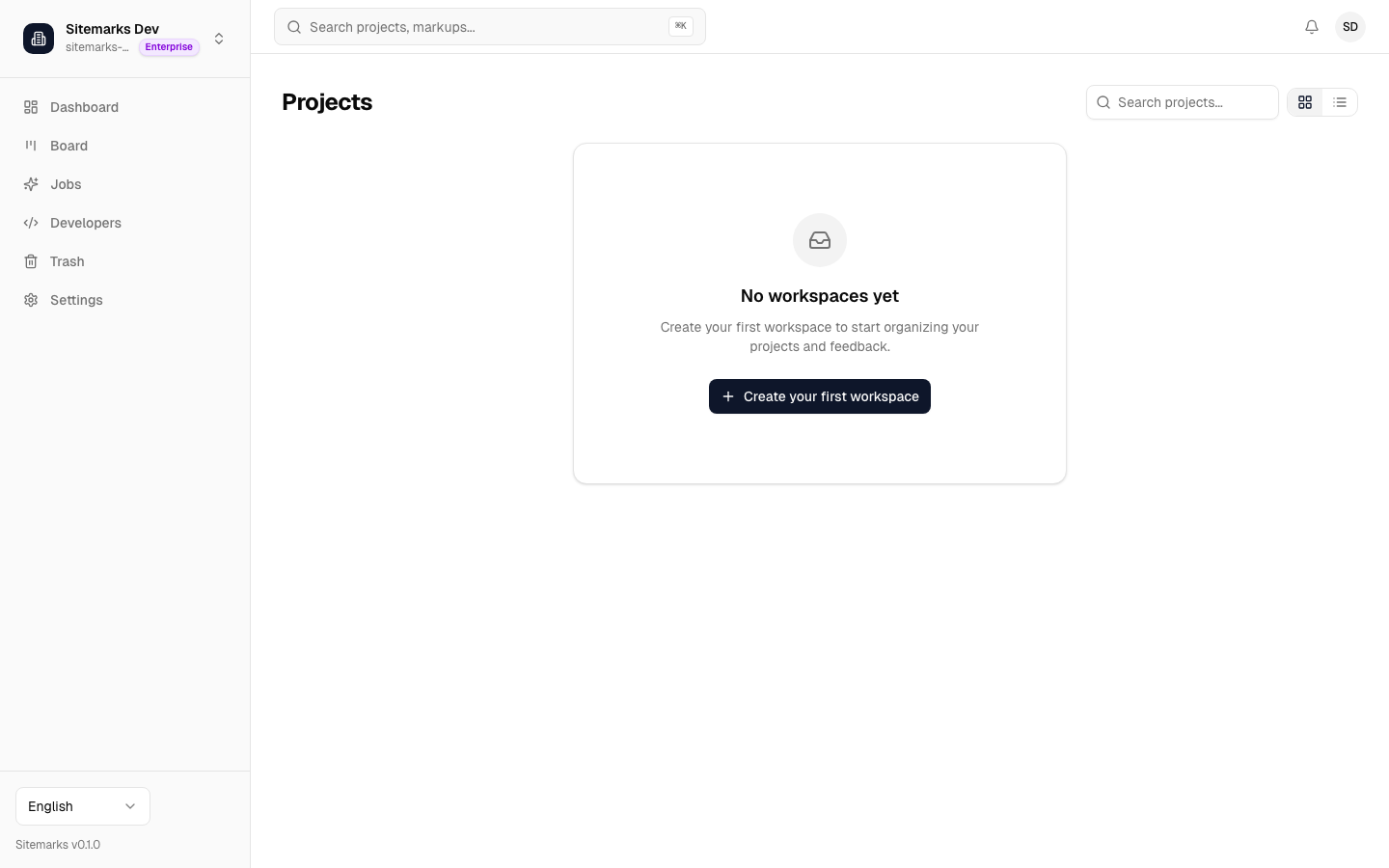
Workspaces
A workspace is a top-level container that belongs to your organization. Think of workspaces as departments, clients, or product lines — any logical grouping that makes sense for your team.
Creating a Workspace
Click the New Workspace button at the bottom of the Projects page to open the creation dialog. You will be asked for two fields:
- Name — a human-readable label (e.g., "Marketing Site" or "Client: Acme Corp").
- Slug — a URL-friendly identifier auto-generated from the name. You can customize it if needed.
Each workspace appears as a collapsible section on the Projects page, with its projects listed beneath it.
Projects
A project lives inside a workspace and serves as the direct container for markups. Each project typically maps to a single deliverable: a website redesign, a mobile app screen set, a PDF report, or a video review pass.
Creating a Project
From any workspace section, use the project creation flow to add a new project. Give it a descriptive name so team members can find it quickly when browsing or searching.
Browsing and Organizing
Grid and List Views
A toggle in the toolbar lets you switch between two layout modes:
- Grid view — displays projects as visual cards with thumbnail previews, markup counts, and last-updated timestamps. Best for scanning many projects at once.
- List view — displays projects as compact rows with the same metadata in a tabular layout. Best when you have a large number of projects and need to compare details quickly.
Your preference persists across sessions.
Search
The search field in the toolbar filters projects in real time as you type. It matches against project names and source URLs, so you can find a project by typing part of its domain name or a keyword from its title.
Filtering and Sorting
Inside a project, the markup toolbar provides additional controls for narrowing down content:
- Type filter — show only markups of a specific type (website, image, PDF, or video).
- Status filter — show only markups with a particular status (active, paused, or archived).
- Sort order — arrange markups by newest first, oldest first, name A-Z, or name Z-A.
Active filters are displayed as removable chips below the toolbar. A "Clear all" action resets every filter at once.
Bulk Actions
Toggle selection mode from the markup toolbar to enable multi-select. Once you have selected one or more markups, a floating action bar appears at the bottom of the screen with the following operations:
- Activate — set selected markups to active status.
- Pause — pause selected markups.
- Archive — move selected markups to the archive.
- Trash — soft-delete selected markups (they can be recovered from the Trash page).
- Select All — extends the selection to every markup matching the current filters.
Markup Types
When you create a new markup inside a project, you choose one of four content types:
| Type | Input | Description | |------|-------|-------------| | Website | URL | Enter a live URL. Sitemarks captures a full-page screenshot automatically and sets up a proxied preview for annotation. | | Image | File upload | Upload a PNG, JPEG, GIF, or WebP file. The image is stored securely and rendered in the annotation editor. | | PDF | File upload | Upload a PDF document. Each page becomes annotatable, making it suitable for print proofs, contracts, or design specs. | | Video | File upload | Upload an MP4, WebM, or OGG file. Annotations can be pinned to specific timestamps in the video timeline. |
Plan availability
The Free plan supports Website and Image markup types. Upgrading to Pro or Enterprise unlocks PDF and Video types, along with the HTML markup type for raw HTML review.
Storage Limits
Every uploaded file (images, PDFs, videos) counts toward your organization's storage quota. The limits vary by plan:
| Plan | Storage | Projects | Members | |------|---------|----------|---------| | Free | 1 GB | 3 | 2 | | Pro | 50 GB | Unlimited | Unlimited | | Enterprise | Unlimited | Unlimited | Unlimited |
Approaching your limit
When your organization nears its storage cap, new file uploads will be rejected. You can free up space by deleting unused markups from the Trash, or upgrade your plan for more capacity.
Website-type markups (created from a URL) do not consume storage because they are managed separately from uploaded files.