Developer Console & MCP
Connect your AI-powered code editor to Sitemarks via the Model Context Protocol (MCP) endpoint.
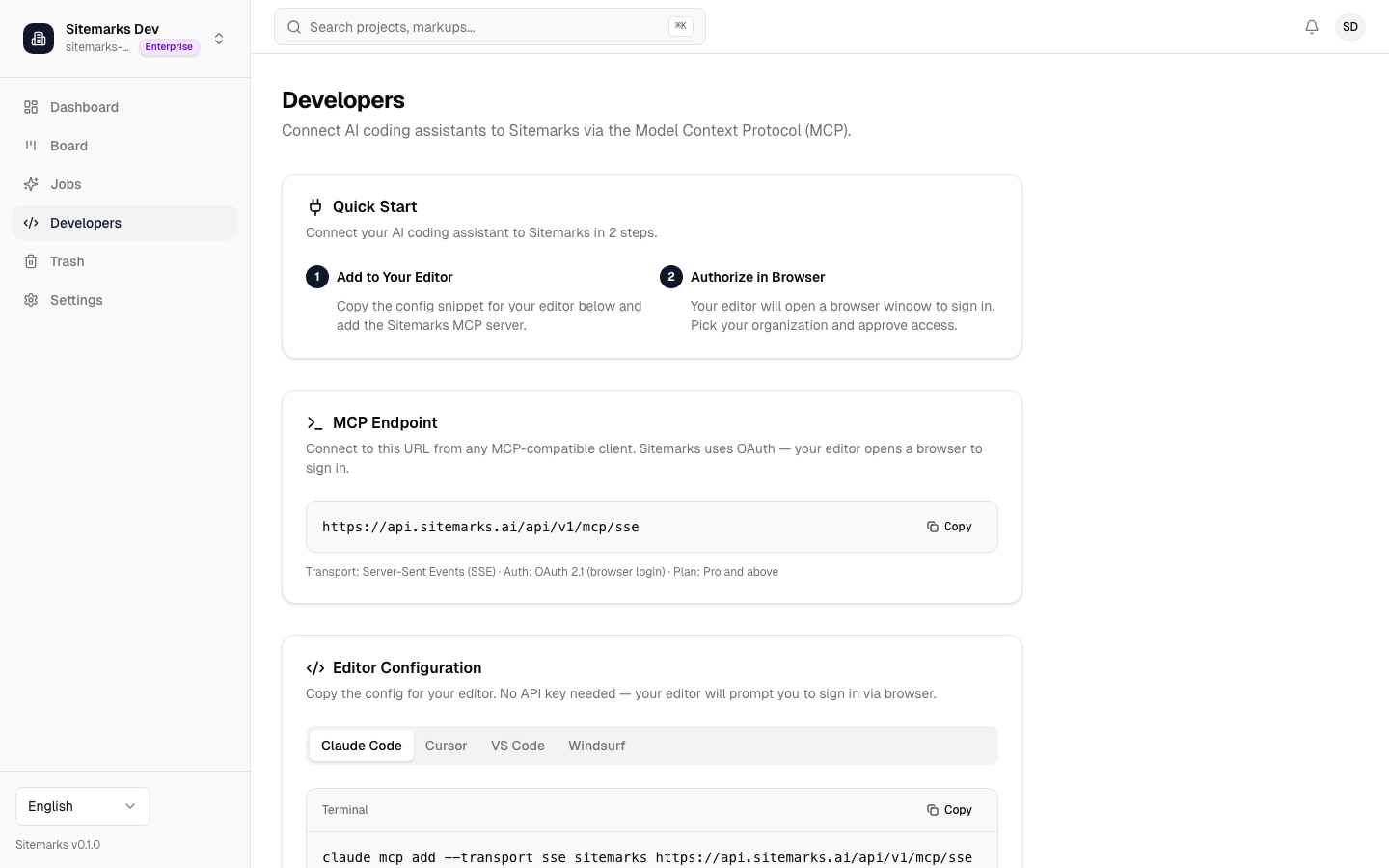
Sitemarks exposes a Model Context Protocol (MCP) server that lets AI-powered code editors interact with your projects, markups, and annotations directly from the terminal or IDE. The Developer Console page in Settings is where you find your MCP endpoint URL and manage OAuth credentials.
Plan requirement
The MCP endpoint and API access features require a Pro or Enterprise plan.
MCP endpoint
Your organization's MCP endpoint follows this format:
https://sitemarks.ai/api/v1/mcp/sse
Authenticate with an OAuth token from the Developer Console. See the editor-specific setup guides below.
Editor configuration
Claude Code
Add the MCP server to your project's .mcp.json or global configuration:
{
  "mcpServers": {
    "sitemarks": {
      "type": "sse",
      "url": "https://sitemarks.ai/api/v1/mcp/sse",
      "headers": {
        "Authorization": "Bearer <YOUR_OAUTH_TOKEN>"
      }
    }
  }
}
Cursor
Open Settings > MCP Servers and add a new entry:
- Name:
sitemarks - Transport: SSE
- URL:
https://sitemarks.ai/api/v1/mcp/sse - Authorization: Bearer token from the Developer Console
VS Code (Copilot MCP)
In your .vscode/settings.json:
{
  "mcp": {
    "servers": {
      "sitemarks": {
        "type": "sse",
        "url": "https://sitemarks.ai/api/v1/mcp/sse",
        "headers": {
          "Authorization": "Bearer <YOUR_OAUTH_TOKEN>"
        }
      }
    }
  }
}
Windsurf
Open Settings > MCP and add a server with the SSE URL and your Bearer token, following the same pattern as the editors above.
Available tools
Once connected, the MCP server exposes the following tools scoped to your organization:
| Tool | Description | Scope |
|------|-------------|-------|
| list_projects | List all projects in the organization | read |
| get_project | Get project details including folder structure and markup count | read |
| list_markups | List markups in a project, optionally filtered by status | read |
| get_markup | Get full markup details with annotations, comments, and latest screenshot | read |
| search_markups | Search markups by title or comment text | read |
| create_markup | Create a new markup from a URL (screenshot capture runs asynchronously) | write |
| create_annotation | Add an annotation to a markup at a specific position | write |
| create_comment | Add a comment to an existing annotation | write |
| resolve_annotation | Mark an annotation as resolved | write |
Tools that modify data require the write scope. Read-only tools work with any valid session.
Typical workflow
Ask your AI assistant to "list open annotations on the homepage markup" or "resolve annotation X and leave a comment explaining the fix." The MCP tools let your editor participate in the feedback loop without switching to the browser.
Quick start
- Navigate to Settings > Developers in the Sitemarks dashboard.
- Copy your MCP endpoint URL and generate an OAuth token.
- Add the SSE server configuration to your editor (see examples above).
- Verify the connection by asking your AI assistant to run the
list_projectstool.
If the connection fails, confirm that your organization is on a Pro or Enterprise plan and that your token has not expired.