Notifications
Configure notification channels, events, and email digest preferences.
Sitemarks keeps you informed about activity across your projects through in-app and email notifications. The Notifications settings page lets you control which events trigger notifications and how they are delivered.
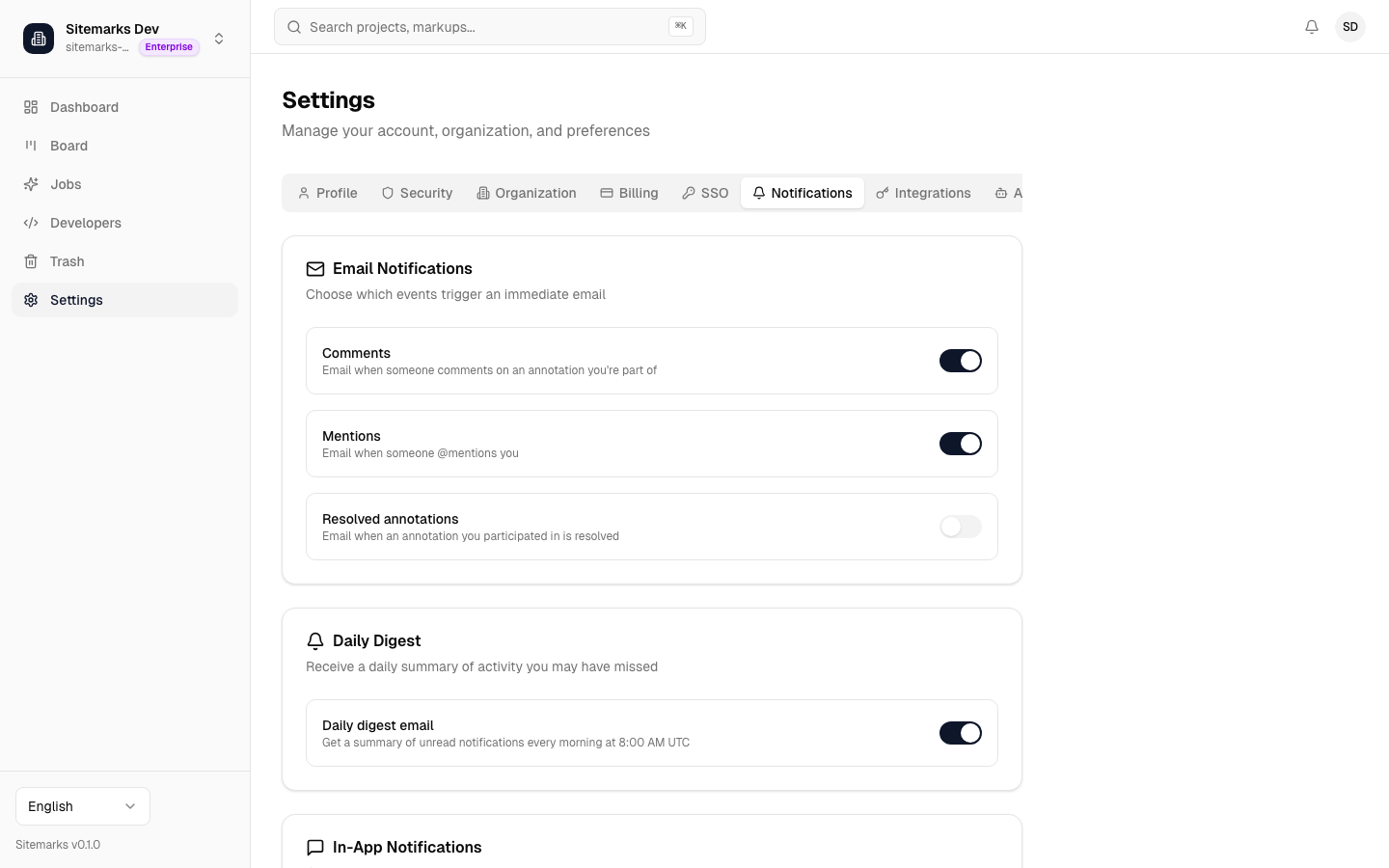
Notification Channels
Sitemarks delivers notifications through two channels:
- In-app — notifications appear in the bell icon menu in the top navigation bar. They are available in real time and persist until you mark them as read.
- Email — notifications are sent to the email address associated with your account. Email delivery can be configured per event type and per delivery frequency.
Configurable Events
You can enable or disable notifications for each event type independently across both channels. The following table lists the available events:
| Event | Description | In-App | Email | |---|---|---|---| | New comment | Someone posts a comment on a markup you are involved in | Configurable | Configurable | | Comment reply | A reply is added to a comment thread you participated in | Configurable | Configurable | | Annotation created | A new annotation is added to a markup in your project | Configurable | Configurable | | Annotation resolved | An annotation you created or are assigned to is resolved | Configurable | Configurable | | Markup status changed | A markup's status changes (e.g., In Review, Approved) | Configurable | Configurable | | Member invited | A new member is invited to your organization | Configurable | Configurable | | Markup shared | A markup is shared with you via a share link | Configurable | Configurable |
Staying focused
If you find yourself receiving too many notifications, consider disabling in-app alerts for high-frequency events like annotation creation and relying on email digests instead.
Email Preferences
For email notifications, you can choose one of three delivery modes:
- Immediate — emails are sent as soon as the event occurs. Best for time-sensitive workflows where you need to respond quickly.
- Digest — notifications are batched and delivered as a summary email at a regular interval (daily). This reduces inbox noise while keeping you informed.
- Off — no email notifications are sent for the event. You can still receive in-app notifications if those remain enabled.
To change your email preference for a specific event, toggle the dropdown in the Email column next to that event.
Organization-wide defaults
Organization Owners and Admins can set default notification preferences for new members. Individual members can override these defaults from their own Notification settings page.
Managing Notifications
The notification panel (accessible via the bell icon) lets you:
- Mark individual notifications as read by clicking on them.
- Mark all as read using the button at the top of the panel.
- Navigate to the source — clicking a notification takes you directly to the relevant comment, annotation, or markup.
For integration-based notifications (Slack, Microsoft Teams), see the Integrations documentation.