Creating an Account
Sign up for Sitemarks with email or OAuth, and learn about sign-in and security options.
Before you can start collecting visual feedback, you need a Sitemarks account. This guide covers every way to sign up, how to sign in, and how to keep your account secure.
Sign up
Visit sitemarks.ai/sign-up to get started.
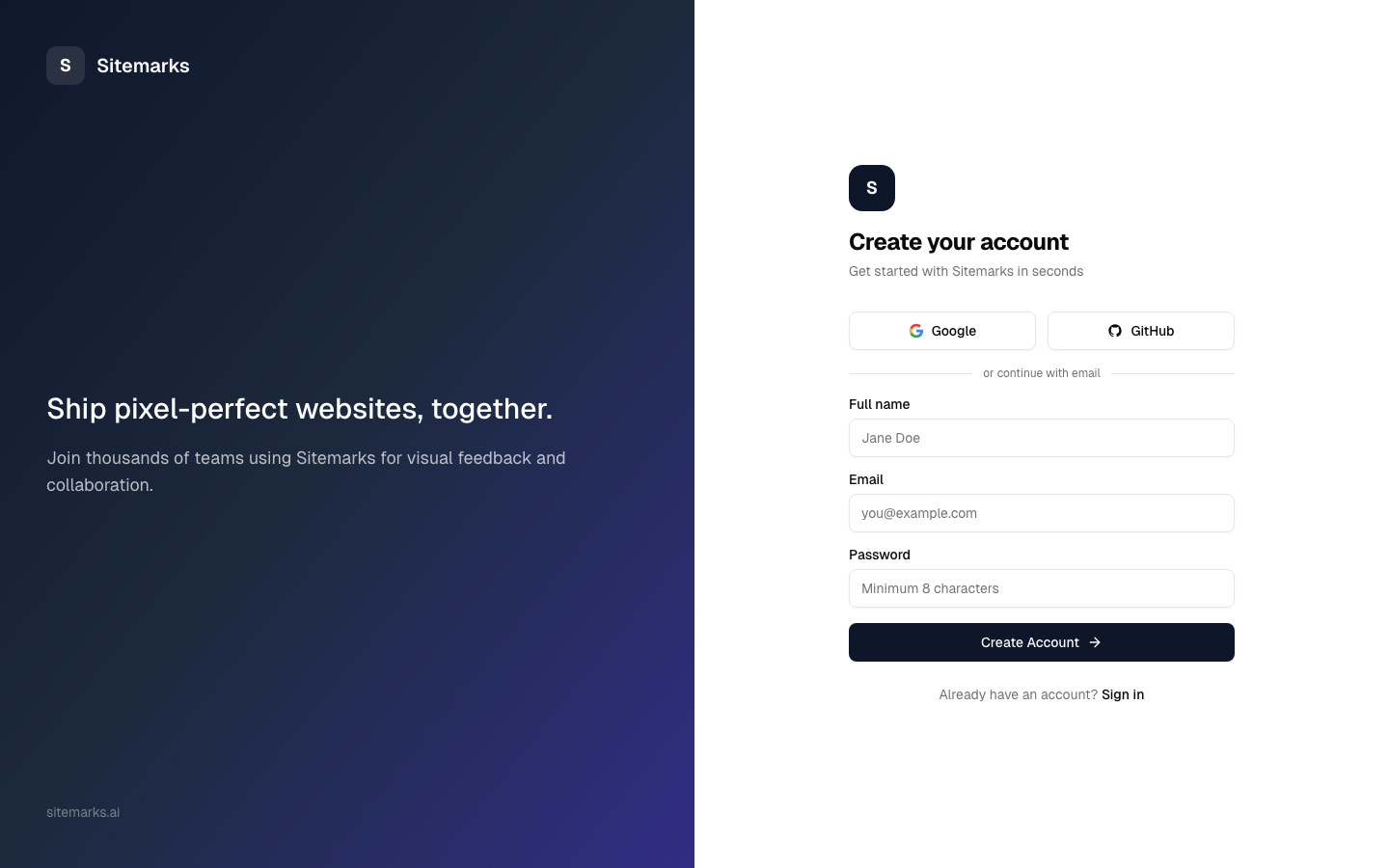
Email and password
- Enter your full name, email address, and a password.
- Click Create Account.
- Check your inbox for a verification email and click the confirmation link.
Password requirements
Your password must be at least 8 characters long. We recommend using a mix of uppercase and lowercase letters, numbers, and symbols for a strong password. A password manager is the easiest way to stay secure.
Google OAuth
Click Continue with Google and authorize Sitemarks in the Google consent screen. Your account is created instantly — no email verification needed.
GitHub OAuth
Click Continue with GitHub and authorize the Sitemarks application. This is a popular choice for development teams already working in GitHub, and it also enables smoother setup if you later connect the GitHub integration for issue tracking.
Regardless of which method you choose, you can link additional sign-in providers later from your account settings. For example, you might sign up with email and then connect Google for faster future logins.
Sign in
Already have an account? Head to sitemarks.ai/sign-in.
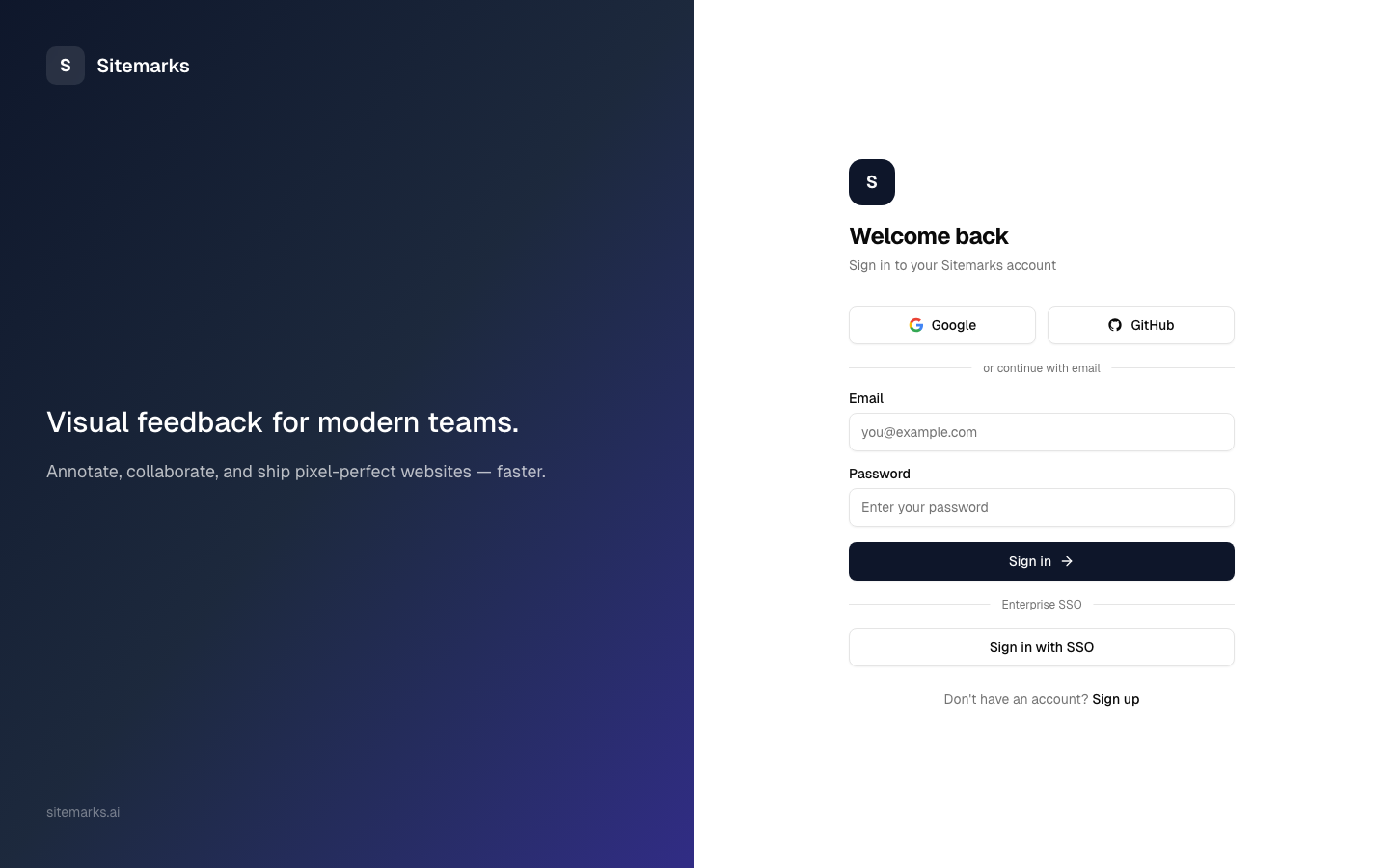
Enter your email and password, or click one of the OAuth buttons to sign in with Google or GitHub. If you signed up with OAuth, use the same provider to sign in — your account is matched by email address.
Forgot your password?
Click the Forgot password? link on the sign-in page. Enter your email and we will send you a reset link. The link expires after one hour for security.
Two-factor authentication (2FA)
For an extra layer of security, Sitemarks supports two-factor authentication using authenticator apps. Once enabled, you will be prompted for a six-digit code from your authenticator app each time you sign in.
To enable 2FA:
- Sign in and navigate to Settings from the sidebar.
- Open the Security tab.
- Click Enable two-factor authentication and scan the QR code with your authenticator app (Google Authenticator, Authy, 1Password, and similar apps all work).
- Enter the six-digit code to confirm, and save your backup codes in a safe place.
Save your backup codes
If you lose access to your authenticator app, backup codes are the only way to recover your account. Store them somewhere secure — a password manager is ideal.
Next steps
With your account ready, it is time to set up your first project:
- Quick Start — a fast-track walkthrough of the entire setup flow.
- Your First Project — learn about the organization, workspace, and project hierarchy.