API Keys
Create and manage API keys for programmatic access to the Sitemarks API.
API keys let you authenticate programmatic requests to the Sitemarks API without a browser session. They are scoped to your organization and inherit permissions based on your membership role.
Plan requirement
API keys are available on Pro and Enterprise plans.
Creating an API key
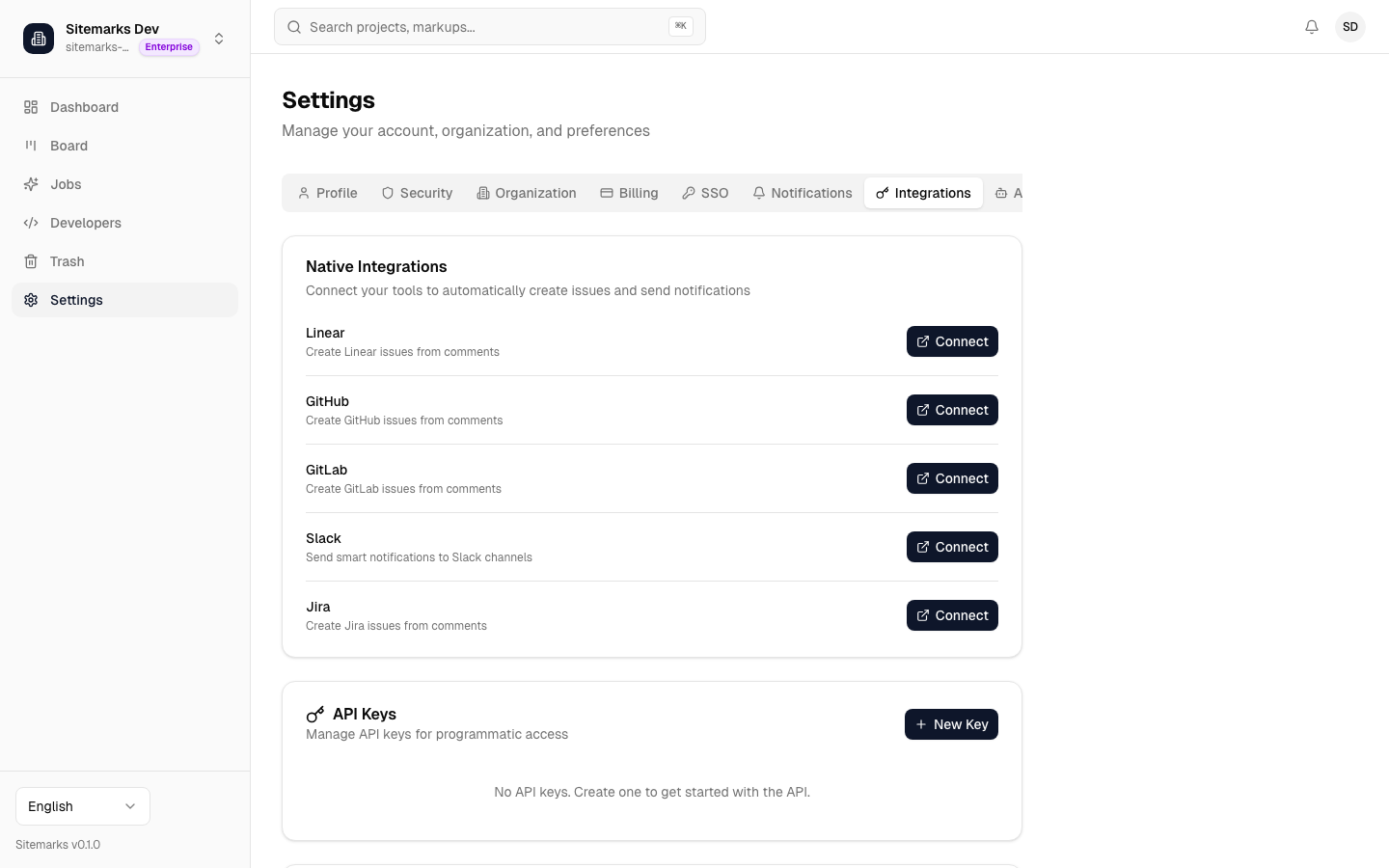
- Go to Settings > Integrations in the Sitemarks dashboard.
- Click Create API Key.
- Enter a descriptive name (for example, "CI Pipeline" or "Staging Webhook").
- Click Create. The full key is displayed once — copy it immediately.
Store your key securely
The full API key is shown only at creation time. Sitemarks does not store the full key, so there is no way to retrieve it later. If you lose the key, revoke it and create a new one.
Keys follow the format sk_live_<64-hex-characters> and are prefixed with sk_live_ for easy identification in logs and configuration files.
Using API keys
Include the key in the Authorization header of every request:
curl -H "Authorization: Bearer sk_live_abc123..." \
  https://sitemarks.ai/api/v1/projects
The API validates the key on each request and records the last-used timestamp for auditing.
Scopes
Scopes are determined automatically by your organization role at the time the key is created:
| Role | Scopes |
|------|--------|
| Owner / Admin | read, write, admin |
| Member | read, write |
| Viewer | read |
Scopes cannot be customized per key. If you need a read-only key, create it from an account with the Viewer role.
Managing and revoking keys
From the Settings > Integrations page you can view all keys in your organization (admins and owners see all keys; members see only their own).
Each key entry shows:
- Name — the label you assigned at creation.
- Prefix — the first 8 characters of the key for identification.
- Created — when the key was generated.
- Last used — the most recent successful authentication.
To revoke a key, click the delete action next to it. Revocation is immediate — any in-flight requests using that key will fail on the next call. Members can revoke their own keys; admins and owners can revoke any key in the organization.
Rate limits
All API requests — whether authenticated by session cookie or API key — are subject to a global rate limit of 100 requests per minute per client. If you exceed this limit, the API responds with HTTP 429 Too Many Requests. Back off and retry after the window resets.
Security best practices
- Never commit keys to source control. Use environment variables or a secrets manager.
- Rotate keys regularly. Create a new key, update your integrations, then revoke the old one.
- Use the principle of least privilege. If a workflow only needs to read data, generate the key from a Viewer account.
- Monitor last-used timestamps. Revoke any key that has not been used in a long time or that you do not recognize.
- Limit key distribution. Each key identifies the creating user — treat it as a personal credential, not a shared secret.