Security
Configure two-factor authentication, manage sessions, and secure your account.
The Security settings page gives you control over your account's authentication and session management. From here you can enable two-factor authentication, review active sessions, manage linked OAuth accounts, and change your password.
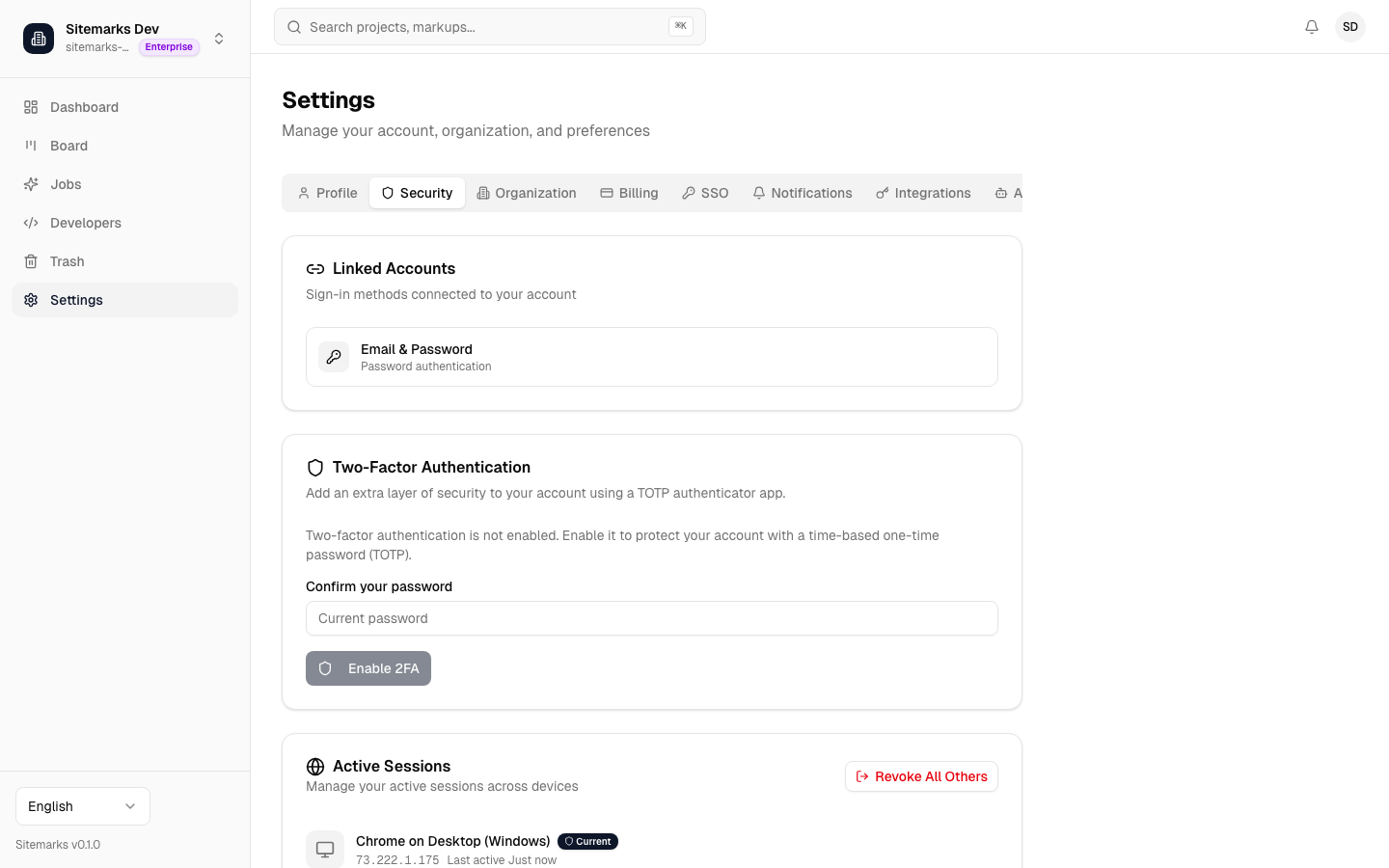
Two-Factor Authentication (2FA)
Two-factor authentication adds an extra security layer by requiring a code from your authenticator app in addition to your password when signing in.
Enabling 2FA
- Navigate to Settings and open the Security tab.
- Click Enable Two-Factor Authentication.
- Scan the QR code with your authenticator app (Google Authenticator, Authy, 1Password, or any compatible app).
- Enter the six-digit code from your authenticator to verify the setup.
- Save your backup codes in a secure location.
Save your backup codes
Backup codes let you sign in if you lose access to your authenticator app. You will only see them once, and each one works only once — save them somewhere safe like a password manager.
Disabling 2FA
To disable two-factor authentication, go to the Security tab and click Disable 2FA. You will need to enter a code from your authenticator app or a backup code to confirm the change.
Recovery
If you lose access to your authenticator app and have exhausted your backup codes, contact support at support@sitemarks.ai with proof of account ownership. Recovery may take up to 48 hours for identity verification.
Active Sessions
The Active Sessions section displays all devices and browsers currently signed in to your account. Each entry shows:
- Device and browser — the user agent string, simplified for readability.
- IP address — the IP address of the session.
- Last active — when the session was last used.
- Current session — a badge indicating which entry is your current browser session.
Revoking Sessions
To sign out a specific device, click Revoke next to the session entry. The revoked session is terminated immediately and the device will be redirected to the sign-in page on its next request.
Suspicious activity
If you see a session you do not recognize, revoke it immediately and change your password. Consider enabling 2FA if it is not already active.
Linked Accounts
If you signed up or signed in using Google or GitHub OAuth, those accounts appear in the Linked Accounts section. You can:
- Link additional accounts — connect a Google or GitHub account to enable OAuth sign-in as an alternative to email and password.
- Unlink an account — remove an OAuth provider. You must have at least one sign-in method (either a password or a linked account) remaining.
Changing Your Password
To change your password:
- Click Change Password in the Security tab.
- Enter your current password.
- Enter and confirm your new password.
- Click Save.
Password changes take effect immediately. All other active sessions remain valid — revoke them manually from the Active Sessions section if you want to force re-authentication across all devices.
Password requirements
Passwords must be at least 8 characters. We recommend using a password manager to generate a strong, unique password for your Sitemarks account.