Members & Roles
Invite team members, manage roles, and understand permission levels.
Sitemarks uses a role-based access model to control what each team member can do within your organization. Members are managed from the Organization tab in Settings.
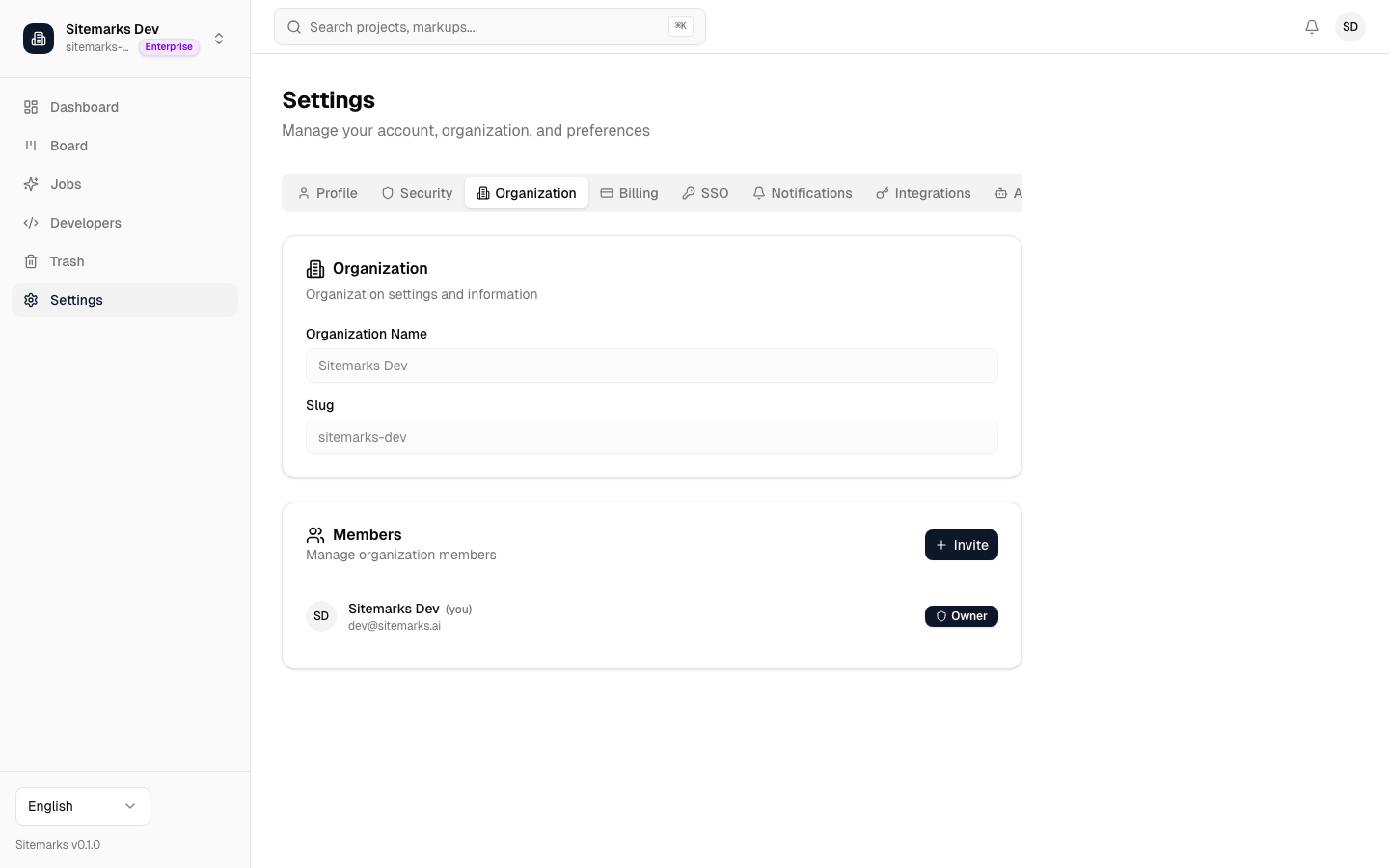
Inviting Members
To invite someone to your organization:
- Navigate to Settings and open the Organization tab.
- Click Invite Member.
- Enter the person's email address and select a role.
- Click Send Invitation.
The invitee will receive an email with a link to join. If they do not already have a Sitemarks account, they will be prompted to create one. Pending invitations can be revoked at any time before they are accepted.
Bulk invitations
You can invite multiple people at once by entering a comma-separated list of email addresses. All invitees will receive the same role, which you can change individually after they join.
Roles and Permissions
Every member is assigned one of four roles. The table below outlines what each role can do:
| Permission | Owner | Admin | Member | Viewer | |---|---|---|---|---| | View projects and markups | Yes | Yes | Yes | Yes | | Create and edit annotations | Yes | Yes | Yes | No | | Create projects and markups | Yes | Yes | Yes | No | | Manage integrations | Yes | Yes | No | No | | Invite and remove members | Yes | Yes | No | No | | Change member roles | Yes | Yes | No | No | | Manage billing and plans | Yes | No | No | No | | Configure SSO and SCIM | Yes | No | No | No | | Delete the organization | Yes | No | No | No |
Owner role
Every organization must have at least one Owner. Ownership can be transferred to another Admin, but the last remaining Owner cannot be downgraded or removed.
Changing Roles
Owners and Admins can change a member's role at any time:
- Find the member in the members list.
- Click the role dropdown next to their name.
- Select the new role.
Role changes take effect immediately. The affected member will see updated permissions on their next page load.
Removing Members
To remove a member, click the options menu next to their name and select Remove. Removed members lose access to all organization resources immediately. Their past comments and annotations are preserved but attributed to a deactivated account.
Removing an Owner
You cannot remove the last Owner of an organization. Transfer ownership to another member first.
Member Limits by Plan
The number of members you can have in your organization depends on your plan:
| Plan | Member Limit | Notes | |---|---|---| | Free | 2 | Includes the organization creator | | Pro | Unlimited | — | | Enterprise | Unlimited | Includes SCIM auto-provisioning support |
When you reach the member limit on the Free plan, new invitations will be blocked until you upgrade or remove an existing member. See Billing & Plans for upgrade details.
Enterprise organizations can automate member provisioning and deprovisioning through SCIM. See SSO & SCIM for setup instructions.